For dealers
Publish your first listing
From an empty stock list to a live listing buyers can find — using the stock wizard, step by step.
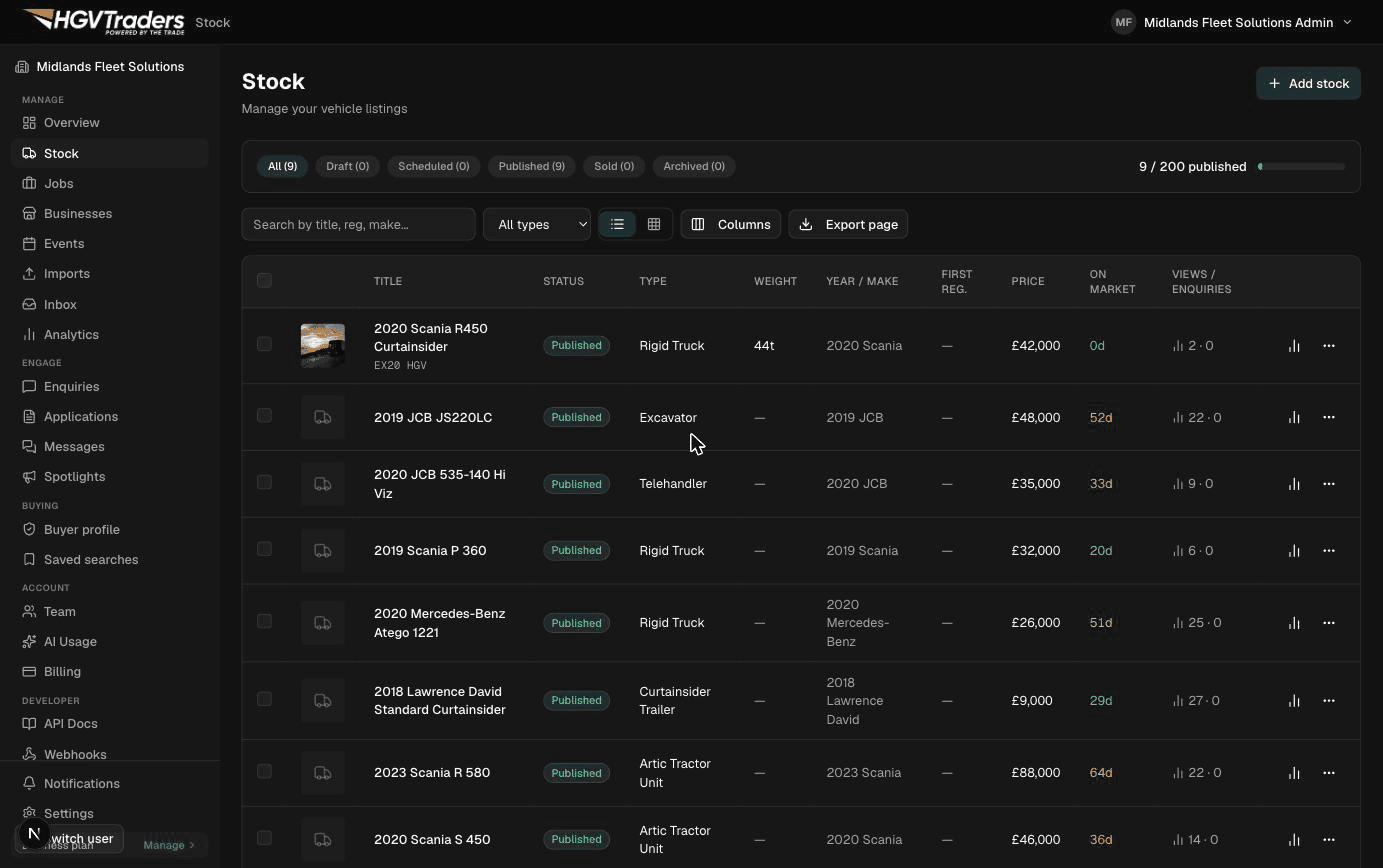
1. Start a new listing
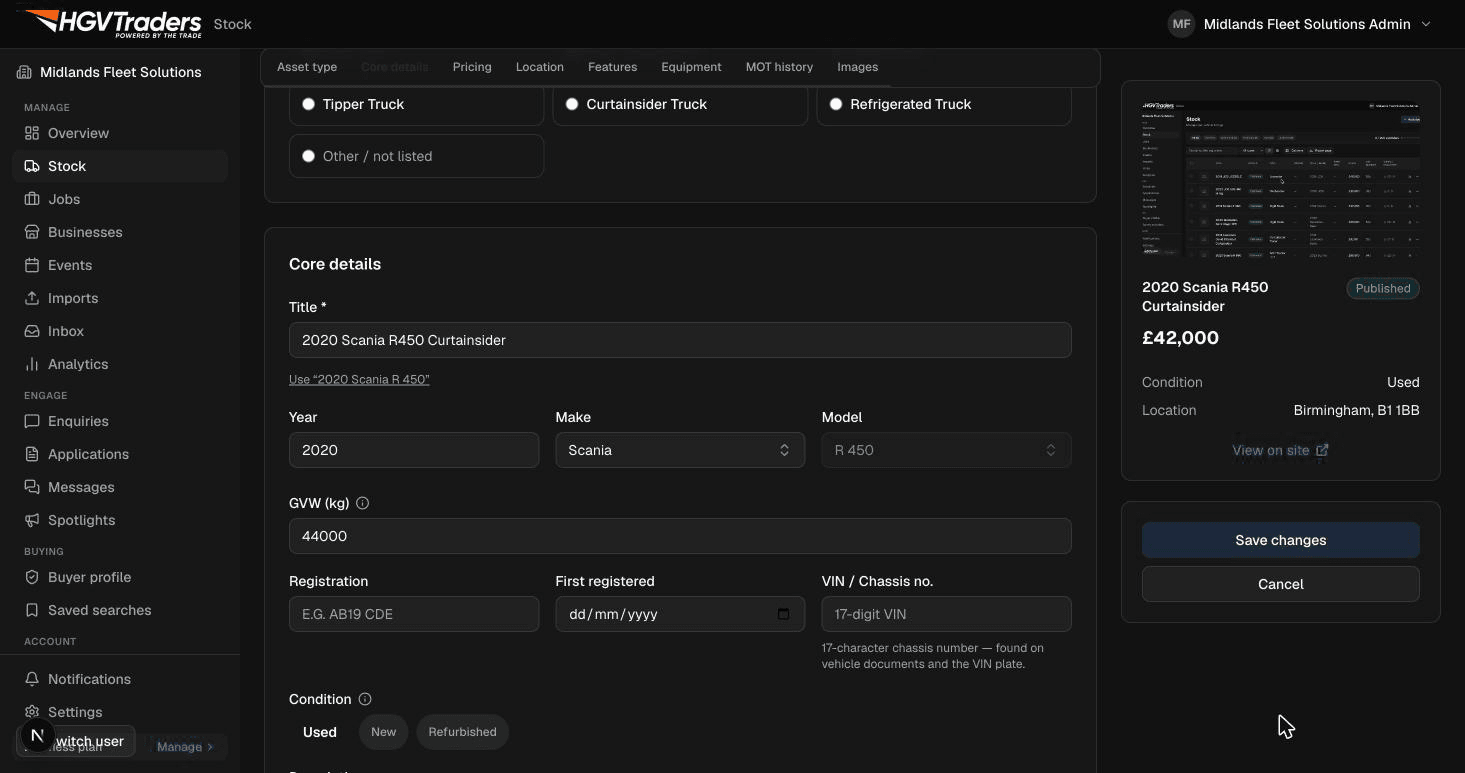
From your dashboard, go to Stock and select "Add listing." The wizard walks you through vehicle details, photos, specs, and pricing in order — you can save a draft and come back at any point.
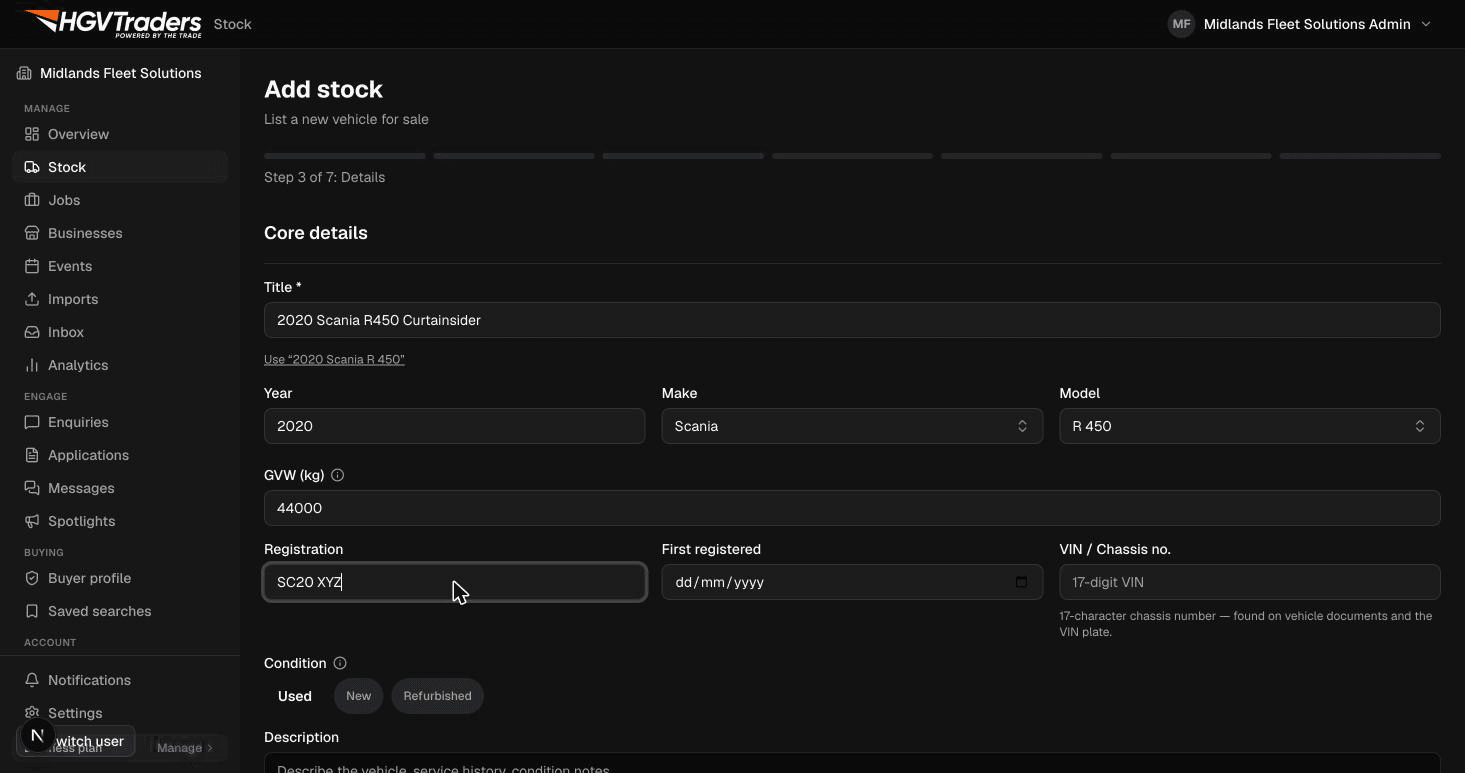
2. Enter vehicle details
Choose an asset type (truck, trailer, or plant) and fill in make, model, year, and registration. If the vehicle has a UK registration, we look up DVLA data automatically to save you re-typing specs.
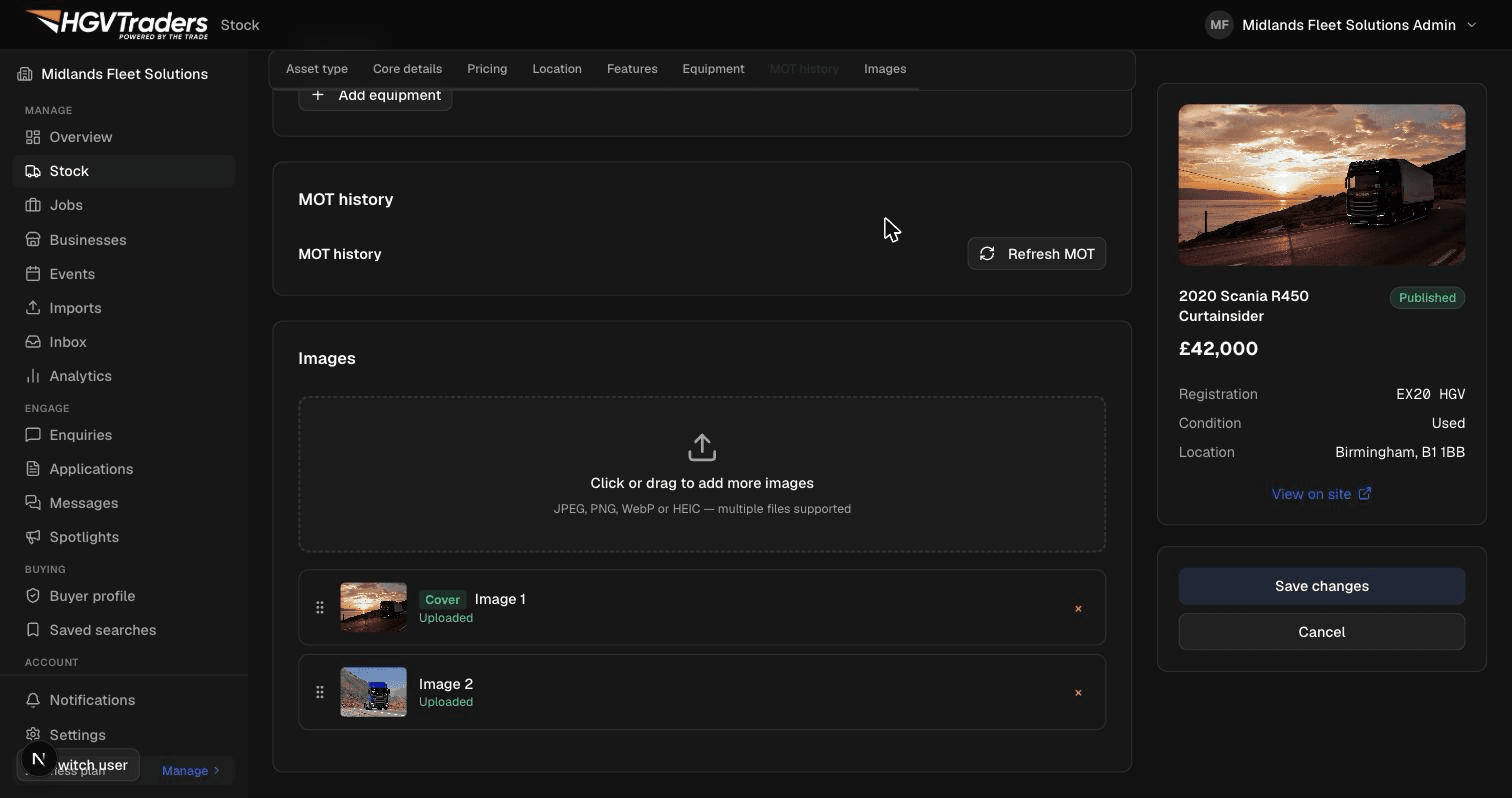
3. Add photos
Upload photos directly or drag and drop — the first photo becomes the listing's cover image. Listings with clear exterior and interior photos get significantly more enquiries.
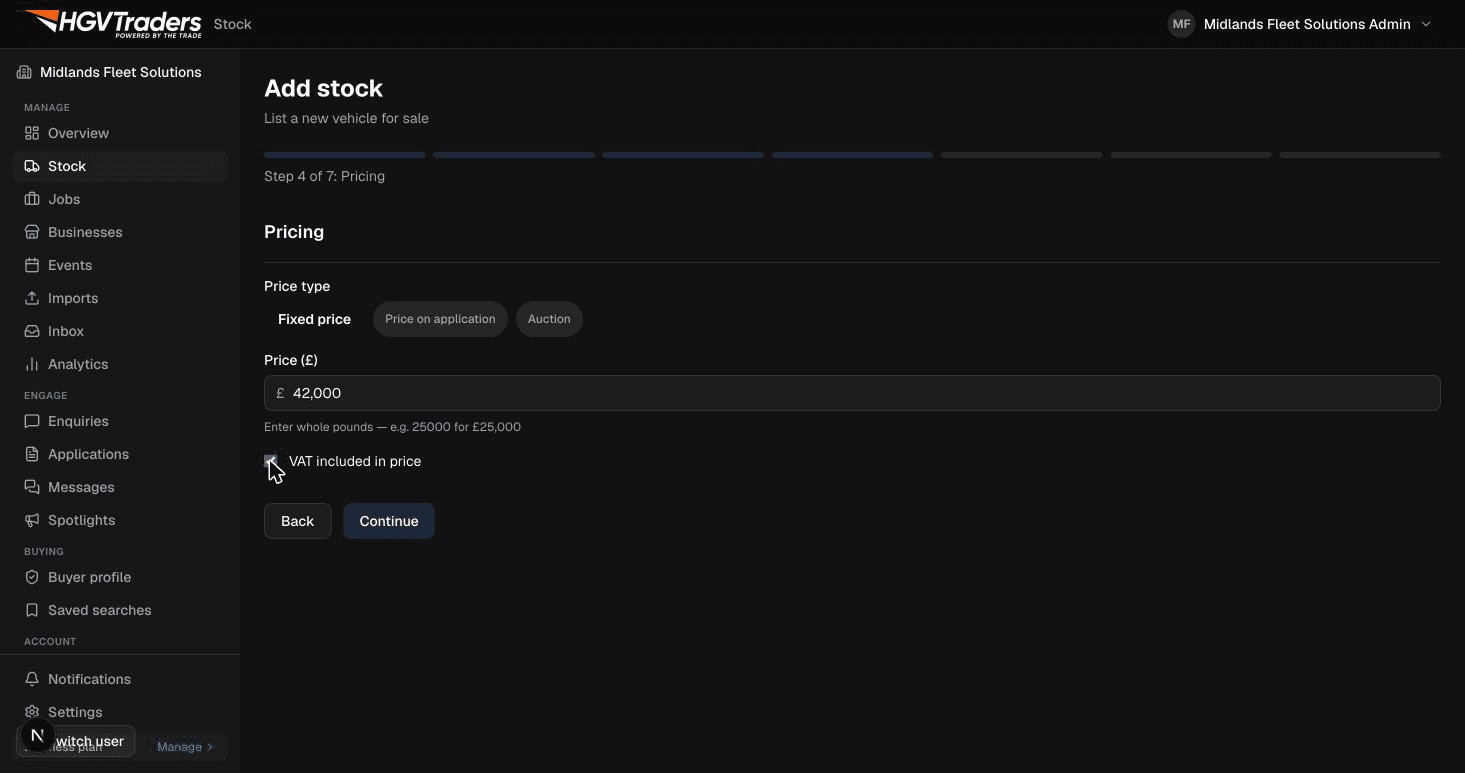
4. Set your price
Enter a price, choose whether it's negotiable or POA, and confirm VAT status. You can update pricing at any time after publishing without losing the listing's enquiry history.
5. Review and publish
Check the summary, then publish. Your listing goes live immediately and becomes searchable — you'll see it in your Stock list with its current status and enquiry count.